
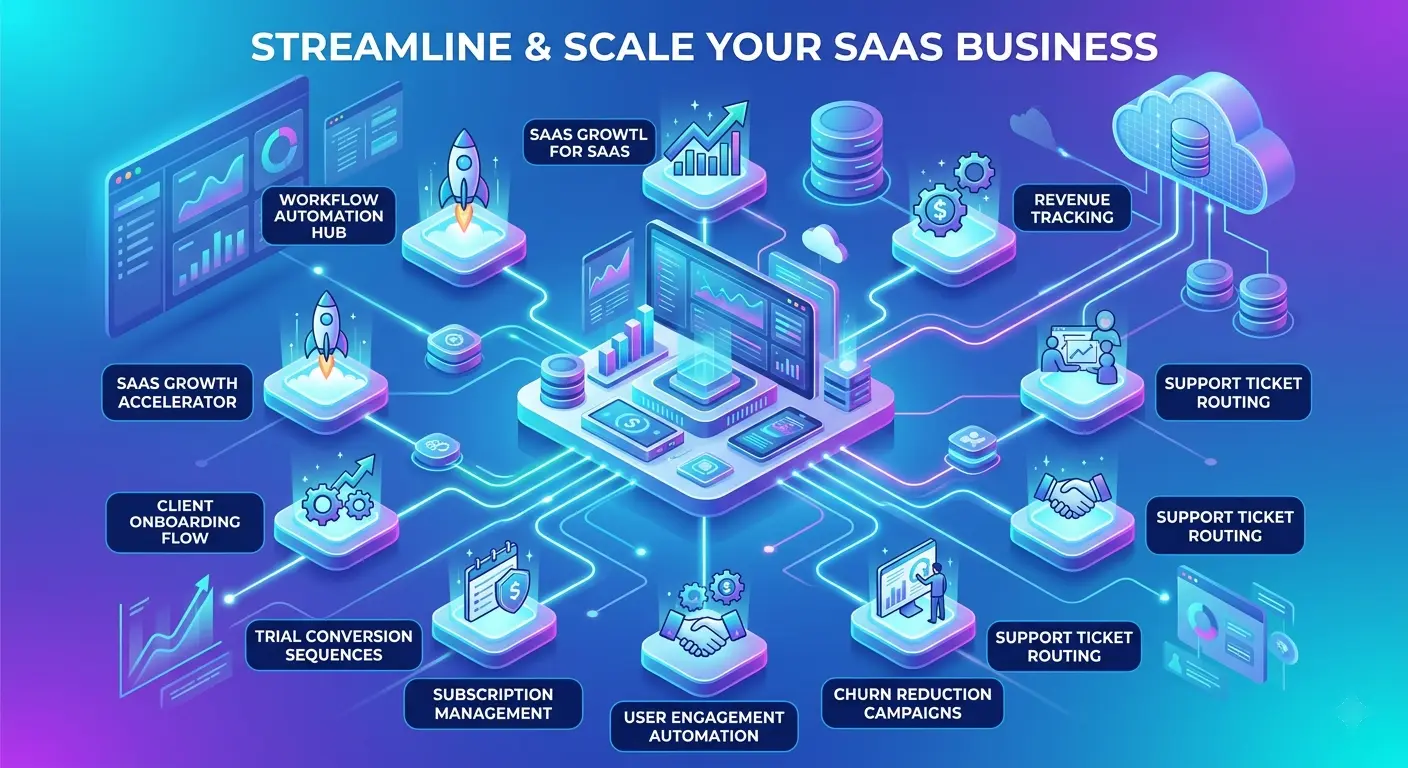
Running a SaaS business means managing leads, onboarding customers, sending follow-ups, tracking conversations, and keeping clients engaged — all without wasting hours on repetitive tasks. That’s where workflows in GoHighLevel become a game-changer.
Whether you’re an agency owner offering white-label SaaS services or a business using GoHighLevel to automate operations, workflows help you create a smooth customer journey from start to finish.
In this guide, you’ll learn how to set up workflows in GoHighLevel SaaS accounts step-by-step, along with practical tips to make your automations feel more personal and effective.
What Are Workflows in GoHighLevel?
Workflows in GoHighLevel are automation sequences that perform actions based on triggers and conditions.
For example, a workflow can:
- Send welcome emails automatically
- Assign leads to team members
- Trigger SMS reminders
- Follow up with inactive prospects
- Move contacts through pipelines
- Automate onboarding for SaaS users
Instead of manually managing every interaction, workflows handle repetitive tasks automatically while keeping communication consistent. See the complete GoHighLevel CRM Review.
Why Workflows Matter for SaaS Accounts
For SaaS businesses, automation isn’t just convenient — it’s necessary.
Here’s why workflows are important:
Save Time
You eliminate repetitive manual work and focus on growth.
Improve Customer Experience
Customers receive instant responses and timely updates.
Increase Conversions
Automated follow-ups reduce lost leads.
Scale Faster
You can manage hundreds or thousands of users without increasing workload.
Reduce Human Errors
Automation ensures every lead receives the same process and attention.
Step-by-Step Guide to Set Up Workflows in GoHighLevel SaaS Accounts
Step 1: Log in to Your GoHighLevel Account
Start by logging into your GoHighLevel dashboard.
If you’re managing SaaS clients, open the specific sub-account where you want to create the workflow.
Step 2: Navigate to the Workflows Section
From the left-side menu:
Automation → Workflows
Click the “Create Workflow” button.
You’ll usually see two options:
- Start from Scratch
- Use a Template
If you’re new, templates can save time. But creating workflows from scratch gives you better control.
Step 3: Choose a Workflow Trigger
Triggers determine when the automation starts.
Common SaaS workflow triggers include:
- Form submission
- New lead added
- Appointment booked
- Pipeline stage changed
- Tag added
- Purchase completed
- Missed call
- Incoming Facebook lead
Example:
If someone signs up for your SaaS free trial, the workflow can automatically begin onboarding.
Step 4: Add Workflow Actions
After setting the trigger, you’ll build the automation using actions.
Popular workflow actions include:
- Send Email
- Send SMS
- Wait Timer
- Add Tag
- Assign User
- Create Task
- Update Opportunity
- Webhook
- Internal Notification
Example SaaS Onboarding Workflow
Here’s a simple onboarding sequence:
- User signs up
- Welcome email sent instantly
- Wait 10 minutes
- Send SMS with login instructions
- Wait 1 day
- Send tutorial video
- Wait 3 days
- Check if the user is logged in
- If no login → send reminder email
This creates a smooth onboarding experience without manual effort.
Step 5: Use Conditions and If/Else Logic
One of the most powerful features in GoHighLevel workflows is conditional logic.
You can personalize automation based on user behavior.
Example:
- If the user opened the email → send product demo
- If the user ignored the email → resend with a different subject line
This makes your automation smarter and more human.
Step 6: Add Personalization
Automation should never feel robotic.
Use custom fields like:
- First Name
- Business Name
- Appointment Date
- Assigned Team Member
Example:
Instead of:
“Hello customer.”
Use:
“Hi John, welcome to our platform. We’re excited to help your business grow.”
Small touches like this improve engagement dramatically.
Step 7: Test the Workflow
Before publishing:
- Submit a test form
- Check email delivery
- Verify SMS formatting
- Review wait times
- Ensure conditions work correctly
Testing prevents embarrassing mistakes and broken automations.
Step 8: Publish and Monitor
Once everything looks good:
Click Publish
After activation, monitor:
- Open rates
- Response rates
- Conversion rates
- Workflow errors
- Customer engagement
Optimization is ongoing. The best workflows improve over time.
Best Workflow Ideas for SaaS Accounts
Lead Nurturing Workflow
Automatically follow up with leads until they book a call or subscribe.
Free Trial Onboarding
Guide new users through setup tutorials and feature education.
Client Reactivation Workflow
Reconnect with inactive customers using targeted offers.
Review Request Workflow
Ask happy users for Google reviews automatically.
Subscription Renewal Reminders
Prevent churn by reminding users before expiration.
Missed Appointment Workflow
Automatically reschedule missed demos or onboarding calls.
Common Mistakes to Avoid
Over-Automating Everything
Too many messages can overwhelm users.
Ignoring Timing
Sending texts late at night creates a poor experience.
Not Segmenting Users
Different users need different communication styles.
Skipping Workflow Testing
Even one broken trigger can affect hundreds of leads.
Writing Robotic Messages
People respond better to natural, conversational communication.
Pro Tips to Make Your Workflows More Effective
Keep Messages Short
Especially for SMS communication.
Add Delays Naturally
Instant back-to-back messages feel spammy.
Use Multi-Channel Follow-Up
Combine email, SMS, voicemail, and Messenger.
Track User Behavior
Optimize based on real engagement data.
Review Analytics Weekly
Small tweaks can improve conversion rates significantly.
Final Thoughts
Setting up workflows in GoHighLevel SaaS accounts can completely transform your lead management, onboard customers, and scale your business.
The key is finding the balance between automation and personalization. Great workflows don’t just save time — they create better customer experiences.
Start simple, test regularly, and improve your automations as your SaaS business grows.
Once your workflows are dialed in, you’ll spend less time chasing tasks and focus more on growth.
FAQs
A workflow in GoHighLevel is an automation system that performs actions such as sending emails and SMS messages, assigning tasks, and updating pipelines based on triggers and conditions.
Yes, in GoHighLevel, you can fully automate SaaS onboarding with workflows that include welcome emails, tutorials, login instructions, and follow-ups.
The availability of workflow depends on your subscription plan. Most agency and SaaS plans include automation of workflow features.
Yes. The workflows of GoHighLevel support multi-channel automation, including email, SMS, voicemail, Messenger, and more.
You can submit test forms, use dummy contacts, and manually trigger workflows to verify actions, delays, and conditions before going live.
Common reasons include:
Incorrect trigger setup
Workflow unpublished
Missing contact information
Broken conditions
User permissions issues
In standard usage, there is no strict limit, but the performance will depend on your account plan and the complexity of automation.
Yes. Proper onboarding, follow-ups, renewal reminders, and engagement campaigns can significantly improve customer retention and reduce churn.

Hi, I’m Harsh — a GoHighLevel (GHL) expert helping agencies and businesses grow through CRM automation, sales funnels, lead generation, and smart marketing strategies. I share honest reviews, practical tips, and easy-to-follow guides to help businesses scale with GoHighLevel.